 CopyCut
One Shortcut.
Screenshot Saved.
Path Copied.
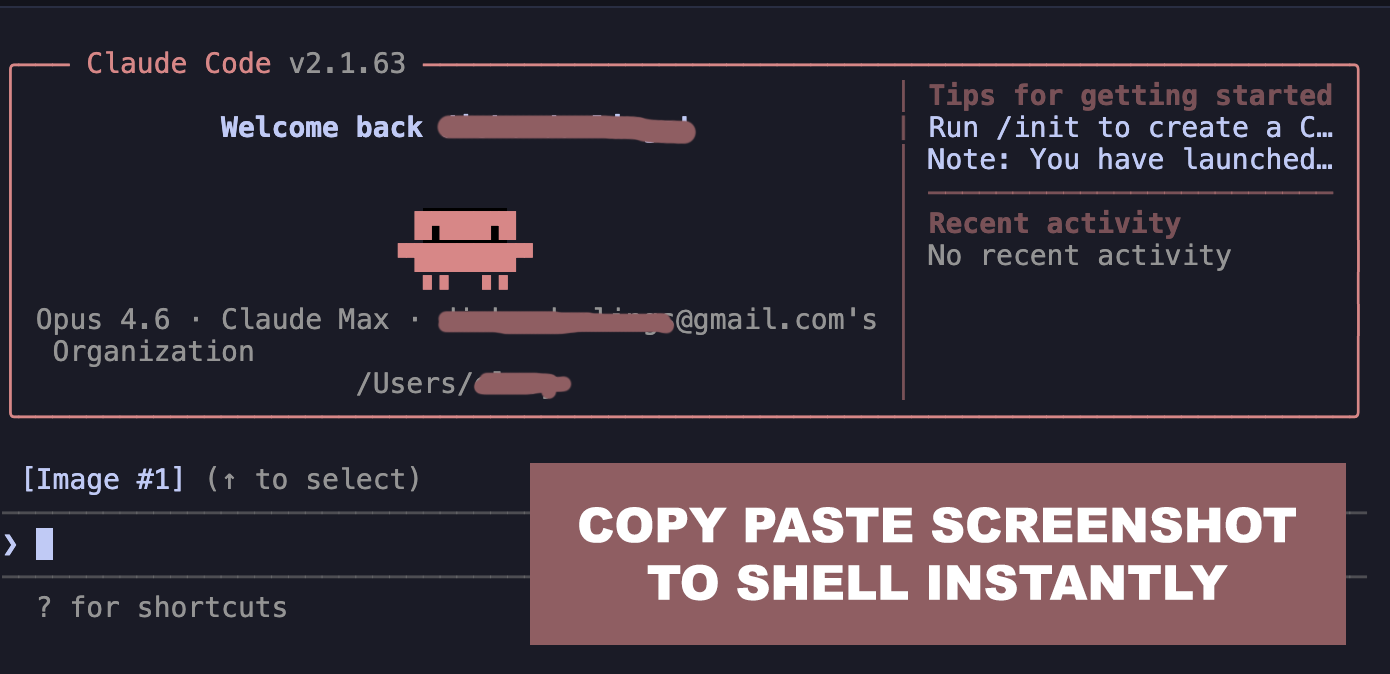
CopyCut gives you a Mac-like one-shortcut screenshot workflow on Windows. Select an area, and the file path is instantly copied to your clipboard.
Screenshots on Windows Are Broken
Every time you need a screenshot file path, you go through the same painful dance.
Without CopyCut
~30 seconds, 5 steps
- 1Open Snipping Tool or press PrtScn
- 2Select the area to capture
- 3Click “Save As” and choose a folder
- 4Open File Explorer, navigate to the file
- 5Right-click → “Copy as path”
With CopyCut
~3 seconds, 1 step
- 1Press your shortcut & select the area
Screenshot saved. File path copied. Done.
How It Works
Three seconds from shortcut to clipboard. No extra steps.
Press the Shortcut
Hit your configured keyboard shortcut. A selection overlay appears instantly.
Select an Area
Click and drag to select the region you want to capture. Works across multiple monitors.
Path Copied
The screenshot is saved and the file path is instantly copied to your clipboard. Paste anywhere.
Who Is CopyCut For?
Anyone on Windows who needs screenshot file paths — fast.
Vibe Coders
Capture UI bugs or design references and paste the path straight into ChatGPT, Claude, or Cursor.
Frontend Developers
Screenshot components for PRs, documentation, or Slack — file path ready to embed.
QA Engineers
Capture bugs in one shortcut and attach the screenshot path to Jira, Linear, or GitHub Issues.
Technical Writers
Build documentation faster. Screenshot, paste path into Markdown, and keep writing.
Loved by Developers
See why developers are switching to CopyCut for their screenshot workflow.
“I switched from Snipping Tool and never looked back. CopyCut saves me at least 10 minutes a day — the file path just appears in my clipboard. Magical.”
James R.
Frontend Developer
“Bug reporting used to be a chore. Now I screenshot, paste the path into Jira, and move on. CopyCut is the tool I didn't know I needed.”
Sarah L.
QA Engineer
“As a vibe coder, I screenshot constantly to feed context to AI. CopyCut makes it instant — one shortcut and the path is ready to paste into Claude or ChatGPT.”
Mike T.
Full-Stack Developer
“Documentation with screenshots used to break my flow. With CopyCut, I capture and paste the path into Markdown without ever leaving my editor.”
Emily K.
Technical Writer
“Worth every penny. I capture error screens, paste the path into Slack, and my team sees the issue immediately. Simple, fast, reliable.”
David P.
DevOps Engineer
“I tried ShareX, Greenshot, Lightshot — none of them copy the file path automatically. CopyCut does exactly one thing and does it perfectly. $11.99/yr is a steal.”
Ana M.
Indie Developer
Simple Pricing
Includes a 7 days trial. Start capturing in 30 seconds.
Try CopyCut for 7 days
Full access to all features. Cancel anytime.
Monthly
Billed monthly after trial
- One-shortcut screenshot capture
- File path auto-copied to clipboard
- Configurable save folder
- Custom keyboard shortcut
- Multi-monitor support
- Lightweight — no bloat
- Windows 10 & 11
Yearly
Just ~$1/mo · Billed annually after trial
- One-shortcut screenshot capture
- File path auto-copied to clipboard
- Configurable save folder
- Custom keyboard shortcut
- Multi-monitor support
- Lightweight — no bloat
- Windows 10 & 11
Secure payment via
14-Day Money-Back Guarantee
We're confident CopyCut will transform your screenshot workflow. But if it doesn't work for you for any reason, simply request a refund within 14 days and we'll give you your money back — no questions asked.
Zero risk. 7-day trial included, plus 14 days money-back after purchase.
Frequently Asked Questions
Your Screenshots Deserve Better
Thousands of developers already ditched the 5-step screenshot dance. Download CopyCut and feel the difference in your first capture.
14-day money-back guarantee · Cancel anytime